How to Turn On Quiet Mode on Instagram (Now Sleep Mode): 2026 Guide
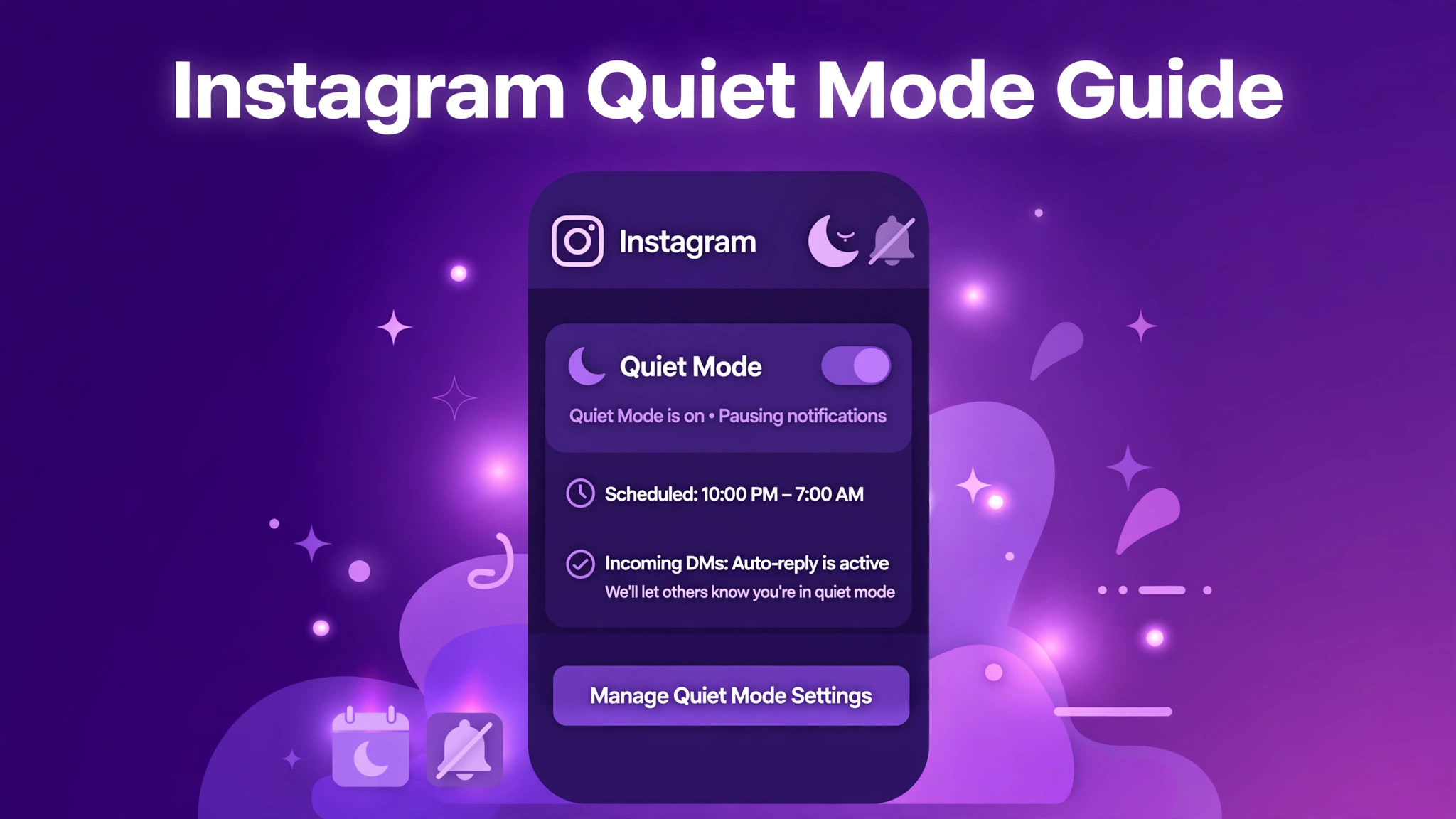
Between likes, comments, follows, and a never-ending stream of direct messages, Instagram can demand your attention at all hours of the day — and night. That is exactly why Meta built Quiet Mode: a scheduled “do not disturb” switch that lives inside the Instagram app and pauses your notifications on a timetable you choose.
There is just one catch: most of the tutorials ranking on Google are now out of date. In 2025, Instagram renamed Quiet Mode to Sleep Mode and moved it to a completely different spot in the settings. If you have been following the old path (Settings → Notifications → Quiet Mode) and cannot find it anywhere, you are not doing anything wrong — the feature simply moved. This guide shows you exactly where it lives now and how to turn it on in 2026, on both iPhone and Android.
What Is Quiet Mode on Instagram?
Quiet Mode is an Instagram feature launched by Meta Platforms in January 2023 to help people set healthier boundaries with their time on the app — particularly at night, while studying, or during working hours. When switched on, Instagram pauses your push notifications for a daily window you define, so your phone stays silent even when people like your posts, comment on your Reels, or send you messages.
In January 2025, Meta updated its official announcement to confirm that the feature had been renamed from Quiet Mode to Sleep Mode. The behaviour stayed the same; only the label and its location in the app changed. Depending on your app version and region, you may still see the old “Quiet Mode” name — but on current versions of Instagram it is called Sleep Mode and lives under Time Management, not Notifications.
What Happens When You Turn On Quiet Mode
Switching on Quiet Mode (Sleep Mode) changes a few specific things during your scheduled hours:
- Push notifications are paused. You will not receive alerts for likes, comments, new followers, or direct messages until the window ends.
- DMs receive an automatic reply. Anyone who sends you a direct message while the mode is active gets an auto-reply letting them know you are in Sleep Mode. Instagram does not currently let you customise the wording of that message.
- Your activity status changes. Your green “active” dot is replaced with a moon icon, and your status reads “In sleep mode” for anyone who checks.
- Instagram nudges you to take a break. If you open the app during your quiet hours, Instagram reminds you to close it and come back later.
What the feature does not do is just as important: you can still open Instagram, scroll Reels, post Stories, and send and receive messages normally. It does not log you out, hide your profile, or delete anything. Think of it as a polite “do not disturb” sign hanging on your account — not a lock on the door.
How to Turn On Quiet Mode on Instagram (2026 Steps)
The steps below are for the current version of the Instagram app, where the feature is labelled Sleep Mode. The process is identical on iPhone and Android:
- Open the Instagram app and tap your profile picture in the bottom-right corner.
- Tap the three-line menu in the top-right corner.
- Tap Settings and activity.
- Tap Time Management.
- Tap Sleep Mode.
- Toggle Sleep Mode on.
- Set your start and end times, choose the days of the week it applies to, then save your changes.
Instagram suggests a default window of 11 PM to 7 AM, but you can change it to fit your own routine — study hours, night shifts, or a full evening of digital detox.
Can’t Find Sleep Mode in Your Settings?
If you do not see Time Management → Sleep Mode, the most likely cause is an outdated app. Update Instagram from the App Store (iPhone) or Google Play Store (Android) and check again. On older app versions, the feature still appears under Settings → Notifications → Quiet Mode. Availability can also vary by country, because Meta rolls features out in stages.
How to Turn Off Quiet Mode on Instagram
Turning it off is simply the same path in reverse:
- Go to your profile and tap the three-line menu.
- Tap Settings and activity → Time Management → Sleep Mode.
- Toggle Sleep Mode off.
Your notifications resume immediately. You can also end a single quiet session early without deleting your whole schedule — just switch the toggle off for tonight and turn it back on when you want the routine to resume.
How to Change Your Quiet Mode Schedule
Routines change, and your quiet hours can change with them. Head back to Time Management → Sleep Mode at any time to adjust the start and end times or pick different days. For example, you might want a 10 PM to 6 AM window on weekdays and a longer, later break at weekends. Instagram lets you configure days individually, so weekday focus sessions and weekend lie-ins can run on different timetables.
Quiet Mode vs Do Not Disturb vs Muting: What’s the Difference?
These features sound similar but behave quite differently:
- Instagram Sleep Mode: a scheduled quiet window inside Instagram only. It pauses Instagram notifications, sends DM auto-replies, and shows a moon badge on your activity status.
- Phone Do Not Disturb (iOS Focus / Android DND): silences notifications from every app on your phone — but nobody on Instagram gets an auto-reply, and your activity status does not change.
- Pausing notifications: Instagram’s separate option for a one-off, longer break from all notifications. Useful when a daily Sleep Mode schedule is not quite enough.
- Muting an account: hides one person’s posts and Stories from your feed without unfollowing them. It does not affect your own notifications or your status.
For most people, the sweet spot is combining the first two: your phone’s Do Not Disturb for total silence, plus Instagram Sleep Mode so the people messaging you understand why you have not replied yet. If DMs are a big part of how you use Instagram, you may also like our guide on how to use Instagram Notes to stay visible without being constantly available.
Sleep Mode on Instagram Teen Accounts
There is one extra detail worth knowing if you manage a Teen Account or use Instagram’s supervision tools as a parent: Instagram turns Sleep Mode on by default from 10 PM to 7 AM every night on teen accounts. A supervising parent or guardian can additionally choose to block the app entirely during those hours — the one situation where Sleep Mode actually stops Instagram from being used, rather than just quietening it.
Does Quiet Mode Affect Your Reach or the Instagram Algorithm?
No. Quiet Mode only pauses your notifications — it has no effect on how the Instagram algorithm ranks your posts, Reels, or Stories, and it does not reduce your reach or engagement rate. Your content keeps working for you while you rest.
The one honest caveat: because you will reply to comments and DMs later than usual, conversations under your posts can move more slowly during quiet hours. If you run a business or creator account, consider mentioning your typical reply hours in your bio. For a broader look at managing your Instagram presence, see our complete IGTools for Instagram guide.
A Quick Safety Note
Quiet Mode / Sleep Mode is a built-in, official Instagram feature — you never need a third-party app to enable it. Be cautious of any app or website promising “advanced quiet mode” controls or “auto-reply bots” that asks for your Instagram login. Handing your credentials to unknown tools is a classic phishing risk and can get your account compromised or flagged for breaching Instagram’s Terms of Use. If a feature is not in the official app, treat it as a red flag.
FAQs About Instagram Quiet Mode
Is Quiet Mode the same as Sleep Mode on Instagram?
Yes. Instagram renamed Quiet Mode to Sleep Mode in 2025 and moved it from Notifications to Time Management in the settings. The function is identical — only the name and location changed.
Will people know I have Quiet Mode turned on?
They can tell if they look: your activity status shows “In sleep mode” with a moon icon instead of the green active dot, and anyone who DMs you receives an automatic reply. Your posts, Stories, and profile otherwise look completely normal.
Can I customise the automatic reply message?
Not currently. Instagram sends a standard auto-reply when someone messages you during Sleep Mode, and there is no option to edit the wording — worth keeping in mind if you use a business account.
Does Quiet Mode work on the Instagram website (desktop)?
The setting itself is managed in the Instagram mobile app, but once enabled it applies to your account everywhere — you will not receive push notifications on any device during your quiet window.
Why can’t I find Quiet Mode in my Instagram settings?
Update the app first: on current versions the feature is called Sleep Mode and lives under Settings and activity → Time Management. On older versions, look under Settings → Notifications → Quiet Mode. If it is still missing, the feature may not have rolled out to your region yet.
Final Thoughts
Instagram’s Quiet Mode — now Sleep Mode — is one of the simplest tools Meta has given users to take back control of their attention. Set it once, and your nights, workdays, or study sessions stay interruption-free while your account keeps running normally. Just remember the new location — Settings and activity → Time Management → Sleep Mode — and you will never be sent in circles by an outdated tutorial again.