How to Download Instagram Reels Without Watermark (2026 Guide)
Saving a favourite Reel to your phone sounds like it should take one tap — and sometimes it does. But many people run into a familiar frustration: Instagram’s built-in download stamps the clip with a watermark, or the Download button is missing entirely. This guide walks you through every reliable way to download Instagram Reels without a watermark in 2026, starting with Instagram’s own method and moving on to browser-based alternatives that need no extra app. We’ll also cover where files end up on your device, why some Reels refuse to download, and the safety and copyright rules worth knowing first.
What “no watermark” actually means
When you save a Reel with Instagram’s native Download option, Instagram often adds its logo and the creator’s username across the video. This watermark is there by design — it is attribution. Tools that save the underlying video file directly (the same MP4 that Instagram streams in the app) return the clip exactly as the creator posted it: no platform logo added. Note that anything the creator edited into the video — captions, stickers, or their own logo — is baked into the footage and will stay.
Method 1: Use Instagram’s built-in Download option
Before reaching for any third-party service, check whether Instagram already lets you save the Reel. Instagram introduced a native download feature for eligible Reels from public accounts, and creators control whether it is switched on for their content.
- Open the Instagram app and find the Reel you want to save.
- Tap the Share (paper plane) icon.
- Look for Download in the menu. If it is there, tap it — the Reel saves to your device in a few seconds.
- Check your camera roll or gallery for the saved video.
The catch: this method usually includes the Instagram watermark with the creator’s username. It is the safest option — everything happens inside the official app — but it is not watermark-free. Also remember that Save (the bookmark icon) is not the same thing: it only bookmarks the Reel inside your Instagram account and does not create a video file on your phone.
Method 2: Download Reels without a watermark in your browser
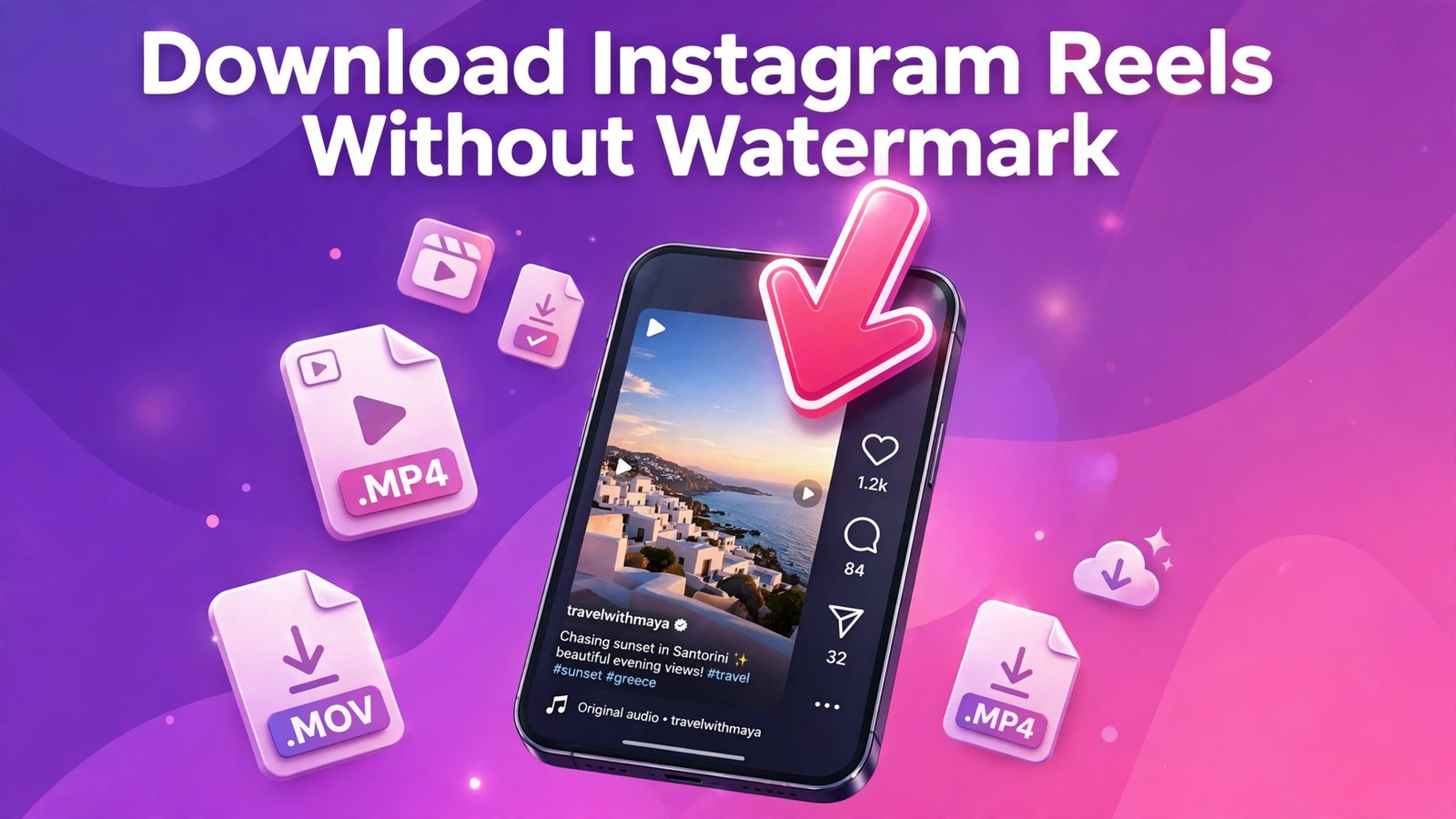
No Download button, or you want the file without the watermark? Browser-based Reels downloaders handle public Reel links without requiring an app, an account, or your Instagram login. The process is the same on iPhone, Android, Windows, and Mac:
- Open the Reel in Instagram and tap the three-dot menu (or the Share icon).
- Choose Copy link. The URL should contain
instagram.com/reel/followed by a short code. - Open a browser-based Reels downloader (services like Instappa, SnapDown, and StoriesIG work this way).
- Paste the link into the box and tap Download.
- Save the MP4 file that appears.
A good tool saves the original file Instagram streams — typically up to 1080×1920 HD — with its audio track intact, and adds nothing over the footage. Be aware of one hard limit: no tool can return more pixels than the creator’s upload contained. Reels are re-encoded by Instagram on upload and are almost always capped at 1080p, so treat any site promising higher quality for every clip with scepticism.
A quick safety note on downloader sites
Stick to services that only ask for the public link. Never enter your Instagram username or password into a downloader — a legitimate one never needs them. Watch out for pages plastered with fake “Download” buttons, which are usually ads, and avoid installing downloader apps or browser extensions from untrusted sources; they are a common vehicle for malware and data harvesting.
Method 3: Screen recording (the last resort)
If neither method works — say, the account is private and the creator will not share the file — screen recording is the fallback. Start a screen recording on your phone (both iOS and Android have it built in), play the Reel full screen, then stop the recording and trim the ends in your gallery app. Quality will be lower and any on-screen UI may get captured, but it works for anything you can watch.
Where do downloaded Reels save?
It depends on your device:
- Android: the MP4 lands in the Downloads folder; most gallery apps pick it up automatically.
- iPhone: Safari saves to the Files app under Downloads. Open Files, find the video, tap Share, then Save Video to move it into Photos.
- Desktop: the file goes to your normal downloads folder, ready to play in any media player or edit in an editor.
Why is the Download button missing?
A missing Download option almost always has one of these explanations:
- The creator disabled downloads. Public-account creators can switch the option off for their Reels — that is their choice, and the button simply will not appear.
- The account is private. Instagram does not offer the Download option for private accounts, and no external tool can reach that content either. Any site claiming otherwise is either asking for your login or misleading you.
- You copied the wrong link. A profile link or a Story link will not work — you need the Reel’s own URL containing
/reel/. - The Reel is deleted or region-restricted. Removed, taken down, or login-restricted clips cannot be fetched by any downloader.
- Your app is out of date. The interface changes as Instagram updates its app, so update Instagram before assuming something is broken.
The rules: copyright and courtesy
Downloading a Reel for offline viewing is one thing; reposting it is another. The video belongs to its creator, and re-uploading someone else’s Reel without permission can infringe copyright — even with credit given. Instagram’s own downloads add the creator’s username precisely to preserve attribution. If you want to reuse a clip, ask the creator first. And if you are a creator who wants to let people save your work, keep the download option enabled in your settings — your watermarked username travels with the file and can bring you new followers.
For more Instagram tooling and guides, see our complete walkthrough at IGTools for Instagram: The Complete Guide (2026).
FAQs
Can I download Instagram Reels without installing an app?
Yes. For eligible public Reels, Instagram’s own Download option works inside the app. For watermark-free files, browser-based downloaders process a public Reel link with nothing to install and no account needed.
Is there a watermark on downloaded Reels?
Instagram’s built-in Download often adds its logo and the creator’s username. Browser tools that save the streamed MP4 file directly add no watermark of their own.
Can I download Reels from a private account?
No. Instagram’s Help Center confirms that private-account Reels cannot be downloaded, and third-party tools cannot access them without a login — which legitimate tools never request. Only public Reels can be saved.
Does the creator know when I download their Reel?
As far as is publicly known, Instagram does not notify creators when a Reel is saved to a device. Browser-based tools fetch the public file through their own servers, so nothing connects the download to your account.
Why does the downloaded Reel have no sound?
If you saved your own Reel with Instagram’s Download, music from Instagram’s licensed library may be stripped due to licensing restrictions — you will get the video with its original audio only. If a browser download has no sound, the upload itself likely had a muted or region-blocked track.
Conclusion
For most Reels, the two-step approach covers everything: try Instagram’s built-in Download first, and if the watermark bothers you or the button is missing, copy the public link into a reputable browser-based downloader. Keep your credentials to yourself, respect creators’ work, and you will have clean, watermark-free Reels saved in under a minute.