Instagram Insights Icon: Meaning and Where to Find It
Somewhere in your Instagram app there is a small bar-chart icon — three or four vertical bars of increasing height — and tapping it opens up a world of data about your account. That is the Instagram Insights icon. Many users see it, few understand it, and even fewer use it regularly. This article explains exactly what the icon means, where to find it, and what happens when you tap it.
What Is the Instagram Insights Icon?
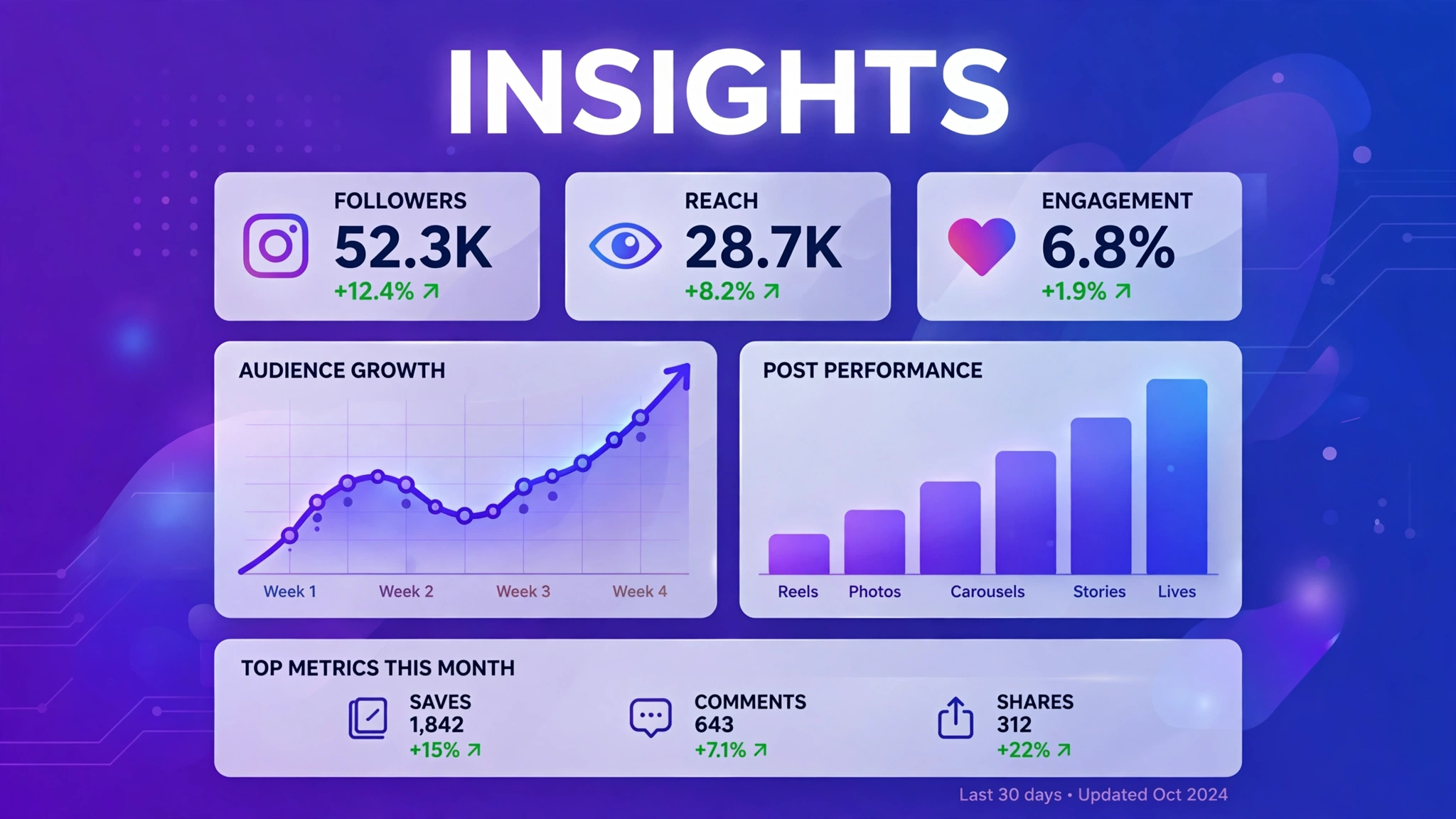
The Insights icon is Instagram’s visual shorthand for analytics. It looks like a tiny bar chart — vertical bars rising from left to right — and wherever it appears, it is a doorway into your performance data. Instagram uses this icon consistently across the app so you can recognize analytics entry points at a glance: on individual posts, on Stories, and in your Professional Dashboard.
The icon only appears for professional accounts (Creator or Business). If you are on a personal account, you will not see it anywhere — which is itself a useful diagnostic: no bar-chart icon means no insights access. Instagram’s Help Center documents which features require a professional account if you want to confirm.
Where to Find the Insights Icon
The icon shows up in several places, each opening a different view of your data:
1. Below Your Individual Posts
Open any of your posts and look beneath it, near the View Insights text. On many app versions, the bar-chart icon sits right next to those words. Tapping either opens the detailed metrics panel for that specific post — reach, impressions, likes, comments, shares, saves, profile visits, and follows.
2. On Your Stories
Open an active Story, swipe up to see viewers, and look for the bar-chart icon. Tapping it reveals Story-specific metrics: views, forward taps, back taps, exits, and replies. For expired Stories, open your Archive, select a Story, and the icon appears there too.
3. In Your Professional Dashboard
Tap Professional Dashboard at the top of your profile. The dashboard itself is your analytics hub, and the insights icon appears next to various sections — top content, audience growth, and content summaries — each opening a deeper breakdown when tapped.
4. On Reels
On your own Reels, the icon (or the View Insights label beside it) opens Reel-specific data including plays, watch time, and interaction breakdowns. Since Reels are Instagram’s highest-distribution format, this is one of the most valuable panels in the app.
What Happens When You Tap It
Tapping the icon opens the relevant insights panel — a metrics screen tailored to whatever you tapped it from. A post’s panel shows reach, impressions, interactions, discovery sources, and profile activity. A Story’s panel shows views and navigation behavior. The dashboard’s panels show account-level trends over 7, 14, 30, or 90 days.
Nothing happens publicly when you tap it. The icon is visible only to you, the data is private, and tapping it does not notify anyone or change anything about your content. It is purely a viewing tool.
What the Icon Does NOT Mean
Clearing up common confusion: the bar-chart icon is not a sign that your post is “doing well” or “going viral” — it appears on every post regardless of performance. It does not mean Instagram is promoting your content. It is not related to ads, boosts, or verification. It simply marks the entrance to your analytics. If you are new to all of this, this beginner-friendly overview of IGTools for Instagram is a good companion read.
Making the Icon Part of Your Routine
The icon is only useful if you tap it regularly. Build this simple habit: 48 hours after publishing anything, open the post, tap the insights icon, and spend sixty seconds noting reach, saves, shares, and follows. Once a week, do the same from the Professional Dashboard for the bigger picture.
Those sixty-second check-ins compound fast. Within a month you will know which formats earn the most saves, which topics drive profile visits, and which posting times deliver the best early engagement. That knowledge feeds directly into a repeatable step-by-step organic growth plan — and if likes specifically are lagging, these organic ways to increase Instagram likes address the most visible metric first.
The Icon Across App Updates
Instagram redesigns its interface regularly, and the insights icon occasionally moves — sometimes it sits directly under the post, sometimes inside the three-dot menu, and sometimes it appears as text saying “View Insights” with a smaller icon beside it. Do not panic if it looks different after an update; the functionality never goes away for professional accounts. If you cannot find it after a major redesign, check the Professional Dashboard first — it is the most stable entry point — and then look under each post’s menu. Keeping your app updated ensures you always have the latest layout, and Instagram usually documents major navigation changes in its official announcements.
Troubleshooting: Icon Missing or Not Working
- No icon anywhere: you are on a personal account. Switch to professional in Settings.
- Icon shows but panel is empty: the content predates your switch to professional, or data has not loaded yet — wait a few hours.
- Icon disappeared after an update: Instagram occasionally moves it; check under the post’s three-dot menu, or update/reinstall the app.
- Panel opens but numbers look frozen: insights update with up to a 48-hour delay. Check again tomorrow.

Frequently Asked Questions
What does the bar chart icon mean on Instagram?
It marks an entry point to your analytics (Insights). Tapping it opens performance data — reach, engagement, and audience metrics — for the post, Story, Reel, or account section it appears on.
Can other people see the insights icon on my posts?
No. The icon and everything behind it are visible only to you when you are logged into your professional account. Visitors to your profile never see it.
Why don’t I have the insights icon?
The most common reason is using a personal account instead of a professional one. Switch to Creator or Business in your account settings and the icon will appear.
Is the insights icon the same as the Professional Dashboard?
They are related but different. The icon is a button that opens analytics panels; the Professional Dashboard is the main analytics hub on your profile where many of those panels live.
Does tapping the insights icon affect my post’s performance?
No. Viewing your own insights has zero effect on reach, ranking, or any other performance factor. Check as often as you like.
What is the most important thing to know about instagram insights icon?
The most important thing about instagram insights icon is to stick to safe, legitimate methods and never share your Instagram password with any third-party site. Whether you are exploring instagram insights icon for growth, analytics, or simple curiosity, prefer official Instagram features and Meta-approved tools, and treat any service promising instant or guaranteed results with healthy skepticism.